
This section provides instructions on how to install, configure, and register Vivien. You must activate and register Vivien before you can start using it.
In this section
To download the Vivien installer, you must login to the Members Only Area of CAST Software’s website, https://cast-soft.com/cast/member/index.php. Once the download is complete, double-click on the downloaded file to begin the installation, and then follow the steps in the installer. Ensure that you do not plug the dongle into your computer until prompted to do so by the installer.
Notes:
Vivien includes an AutoUpdate feature which allows for automated checking for updates every time the software starts - as long as the computer in connected to the Internet. Updates are generally intended to address problems in the software, but can include, at CAST Software’s discretion, Library updates and/or minor feature enhancements. When an update is found, it may be downloaded and installed.
Note: It is not possible to use AutoUpdate to install a brand new version of Vivien; new versions must be downloaded and installed on their own. (For example, it will not be possible to use AutoUpdate to upgrade from Vivien 2022 to Vivien 2023.)
By default, Vivien automatically checks for updates every time it starts.
Tip: To turn off automatic checking for updates, clear the Check for updates Automatically checkbox in the General tab of the Application Options window.
From the Help menu on the Welcome Screen, choose Check for Updates.
Notes:
When an update is found, a window appears with the list of problems it fixes, along with anything else it includes. We strongly recommend that you review this list as it always contains important information.
Result: Once the download completes, a dialog box appears advising that the installation will begin.
Tip: If you change your mind about installing the update, wait for the installer to load and then cancel it. You will be reminded about the update again the next time Vivien starts.
On the AutoUpdate window, click the Later button.
Result: This will postpone further automatic check for seven days.
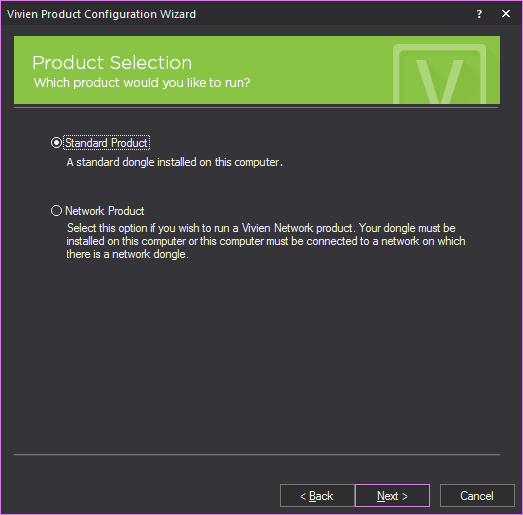
After installing Vivien, when you launch the program for the first time, the Product Configuration Wizard appears, enabling you to choose the product that you want to run: Standard or Network.
To run either of the products listed in the Wizard, you must first have the appropriate dongle plugged into your computer. To run a network product, you must have a network dongle plugged into a computer that is accessible through your network from your PC.
Note: Before you perform this procedure, ensure that you have the correct dongle plugged into your computer, or that the network dongle is plugged into a computer that you can access from your PC.
Result: The Vivien Launching Screen appears with the progress bar while Vivien is preparing to load, and then Vivien Product Configuration Wizard appears.
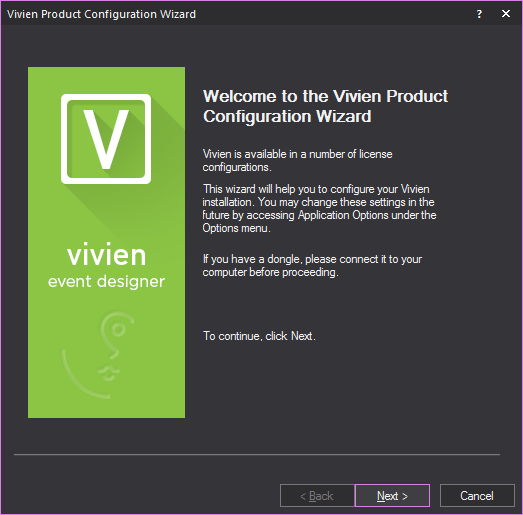
Result: The Product Selection window appears, enabling you to choose the product level that you want to launch.
Result: The program verifies that you have the correct dongle attached, and the Product Configuration Successful window appears:

Note: If you clear this checkbox, you can always set it again in the Application Options window. For details, see "Application Options".
Result: The product that you chose launches.
Reauthorization requires that you “reauthorize” your dongle periodically by logging into the Vivien Members site, getting your Dongle Reauthorization Code, and then applying this code to your dongle.
Reauthorization helps to safeguard your dongle, ensuring that if it is lost or stolen, it will be useless beyond the reauthorization date.
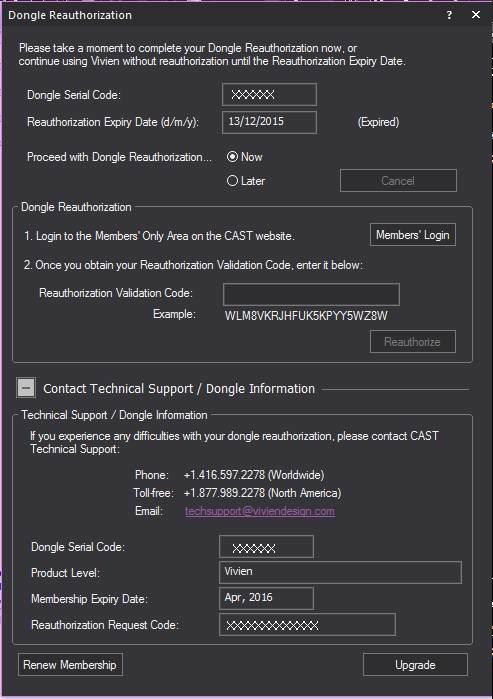
All dongles have a Reauthorization Expiry Date. Starting 30 days prior to this date, regardless of when your Membership expires (or expired), every time you open Vivien a window appears, requesting that you supply a Reauthorization Code for your dongle or the program will cease to function.
Note: You have 30 days from the first appearance of the Reauthorization window to complete the process. To postpone the process during this period and continue working in Vivien, click Later in this window. At the 30-day mark, however, you must reauthorize your dongle or Vivien will cease to function (until you complete the process). It is, therefore, recommended to Reauthorize right away.
Note: You require an Internet connection to perform this procedure so that the information you provide can be validated by our servers. Reauthorization cannot be performed over the phone.
Attention: The application warns you that reauthorization is required 30 days before the reauthorization expiry date. Reauthorization must be performed before the expiry date. If not Vivien will not run again until the dongle reauthorization is performed.
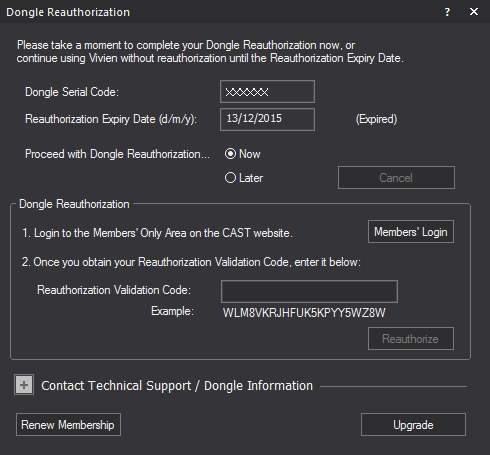
Result: The steps for completing reauthorization will become accessible in the Dongle Reauthorization window.
Note: If you do not wish to perform reauthorization at this time, select the Later radio and click on the Later button at the top right of the Dongle Reauthorization window. This option is only available during the 30 days leading up to the reauthorization expiry date.
Result: The Vivien Members Only Area will open in your Internet browser to begin the reauthorization process.
Note: If you do not have an account, you must create one by entering your contact details and selecting a password. Ensure that the email address you provide is valid.
Result: The browser will list your Reauthorization Validation Code.
Result: A Reauthorization Successful message appears.
Result: Vivien launches. Your dongle is reauthorized.
Note: You require an Internet connection to perform this procedure so that the information you provide can be validated by our servers. Unlike registration, reauthorization cannot be performed over the phone.
You have two options for running Vivien: you can purchase a Membership or you can lease a Vivien dongle.
When you purchase a Membership to Vivien, you purchase the dongle. Your Membership is valid for a specific period of time, during which you can take advantage of all new software updates and releases. You can easily view and renew your Membership from within Vivien. For details, see "Obtaining Membership details".
Leased dongles carry the same privileges as purchased ones (for example, software updates, library updates, and technical support). However, unlike purchased dongles, once the lease is over, Vivien will no longer run with that dongle. At this point, you have the choice of terminating the lease, renewing it for another year or purchasing the dongle (and therefore entering the Membership program).
Please see https://cast-soft.com/faq/#membership for information regarding the differences between Memberships and Leases.
Details of your Membership are stored within Vivien.
From the Help menu, choose About Vivien.
Result: The month and year that your Membership expires is displayed in the Membership Expiry Date box.
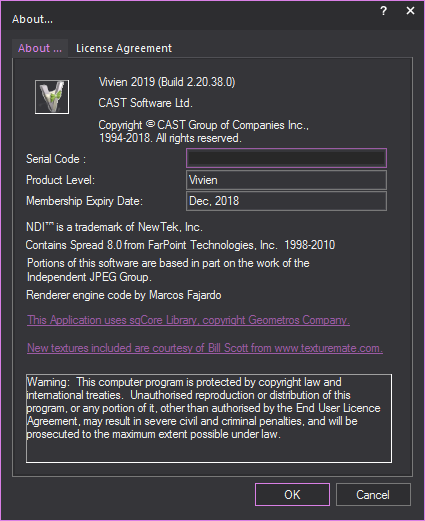
Your Vivien Membership is valid for a specific period of time. You can continue to use Vivien beyond your Membership expiry date; however, you will not be able to access software updates until you renew your Membership.
Contact CAST Software to purchase a renewal for your Membership. CAST Software provides you with the Membership code that you require.
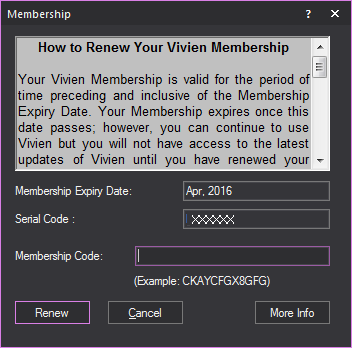
The date when your Vivien Membership expires is displayed in the Membership Expiry Date box.
Note: If you would like to renew your Membership but are unsure of who to contact, click More Info to obtain a list of Vivien dealers.
Details of your Lease are stored within Vivien.
From the Help menu, choose About Vivien.
Result: The date when your Lease expires is displayed in the Lease Expiry Date box.
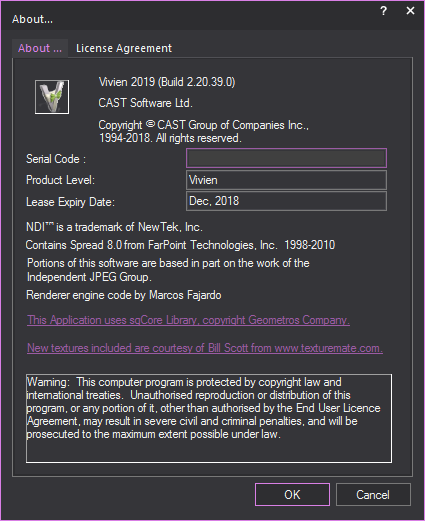
Your Vivien Lease is valid for one year from the date of purchase. You cannot continue to use Vivien beyond your Lease expiry date; you must either renew your lease, or purchase a Membership to use the program.
Contact CAST Software to purchase a renewal for your Lease.
Starting 30 days before your lease expires, the Dongle Lease Renewal window appears each time you open Vivien until the Lease Expiry Date is reached, prompting you to renew your lease (or purchase a Membership).
Result: A Lease Renewal Successful message appears and your dongle is leased for another year.
Result: Vivien starts.
You can set a password in Vivien to password-protect your dongle.
Attention: Please be extremely careful when setting this password since CAST Software cannot reset a password remotely. We recommend that you write this password down and store it in a secure location. If you forget your password, the only way to reset it is by sending your dongle back to CAST Software. You will lose your ability to run Vivien while the dongle is in transit.
Result: The Change Password dialog box appears.
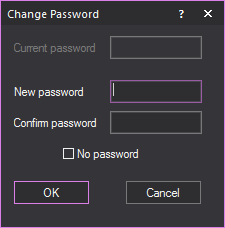
Result: The next time that you launch Vivien on the same computer, you will be prompted to enter your password. In the Enter password box, type your password. If you do not want to be prompted to enter a password every time you launch Vivien, select the Remember for next time checkbox.
Result: The Change Password dialog box is displayed.
Note: If you decide that you do not want to password-protect your dongle, select the No password checkbox.
You must run Vivien as Administrator if you want Vivien to save and remember the password next time you launch it.
Result: Vivien Welcome window opens and the Enter password dialog box appears.
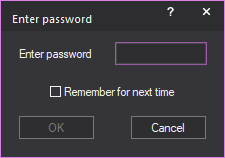
Result: The Enter password dialog box closes, and Vivien is ready to use. Vivien will remember the saved password next time it opens, whether run as Administrator or not.
Notes:
 © The CAST Group of Companies
Inc., 2004-2022 All rights reserved.
© The CAST Group of Companies
Inc., 2004-2022 All rights reserved.